

Create your partner account
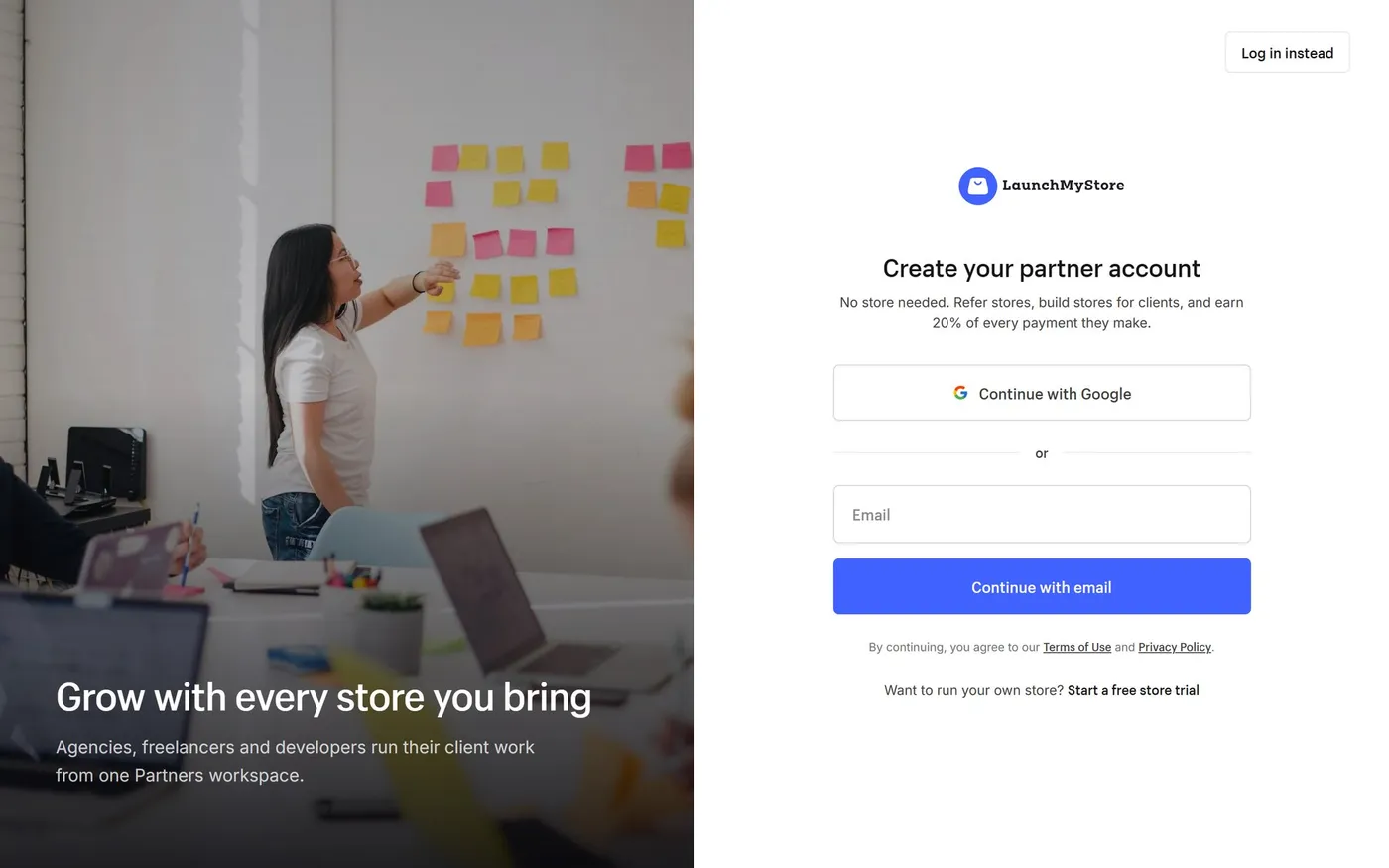
Go to app.launchmystore.io/partner/signup. It takes about a minute.
- Choose Continue with Google, or type your email and choose Continue with email.
- Create a password. We email you a link to confirm your address; you can keep going straight away.
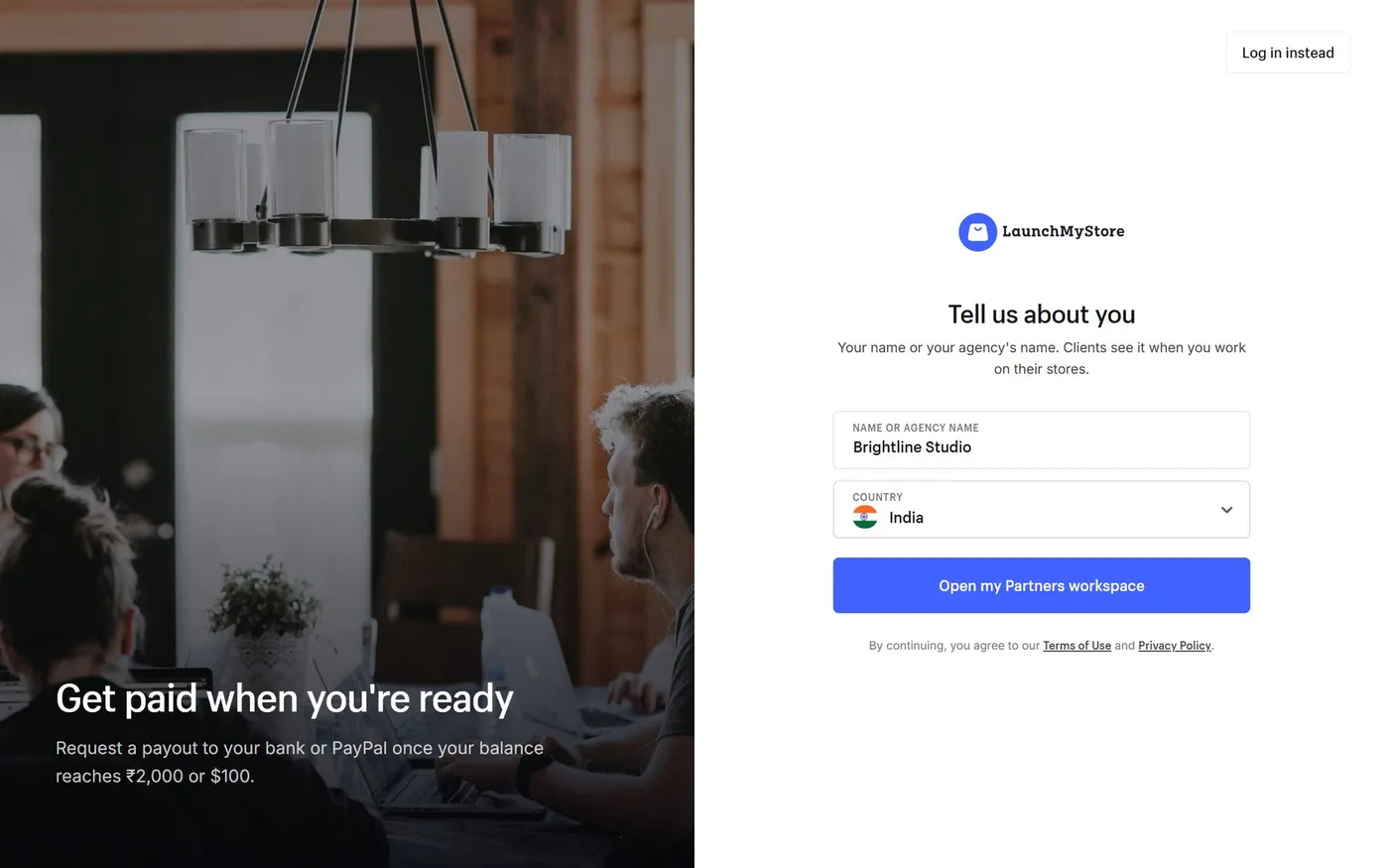
- Enter your name or agency name and your country, then choose Open my Partners workspace.
Sign in
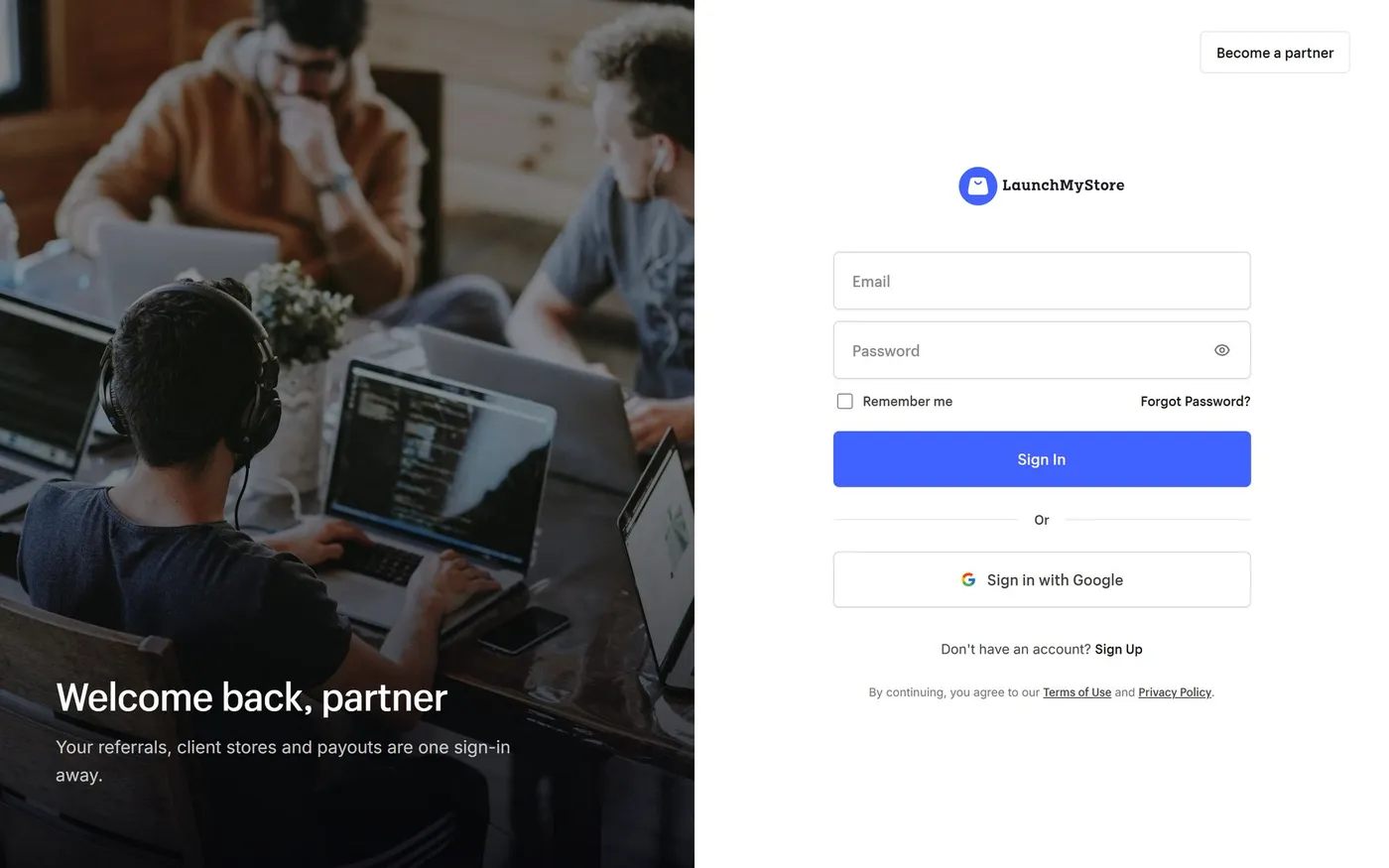
Sign in at app.launchmystore.io/partner with your email and password, or with Google. You land in your Partners workspace.
Your Partners workspace
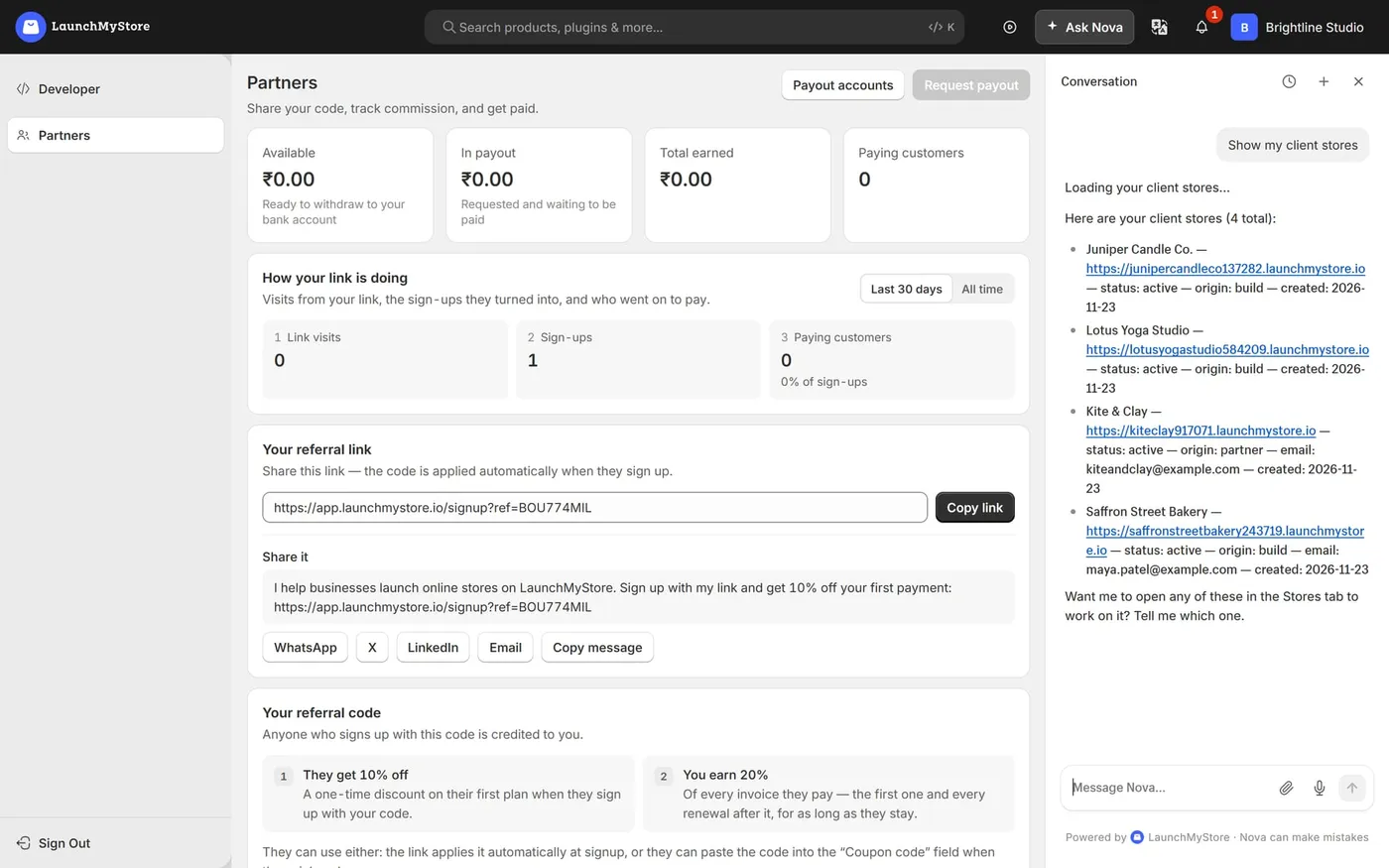
Everything lives on one page, Partners, in the left menu.
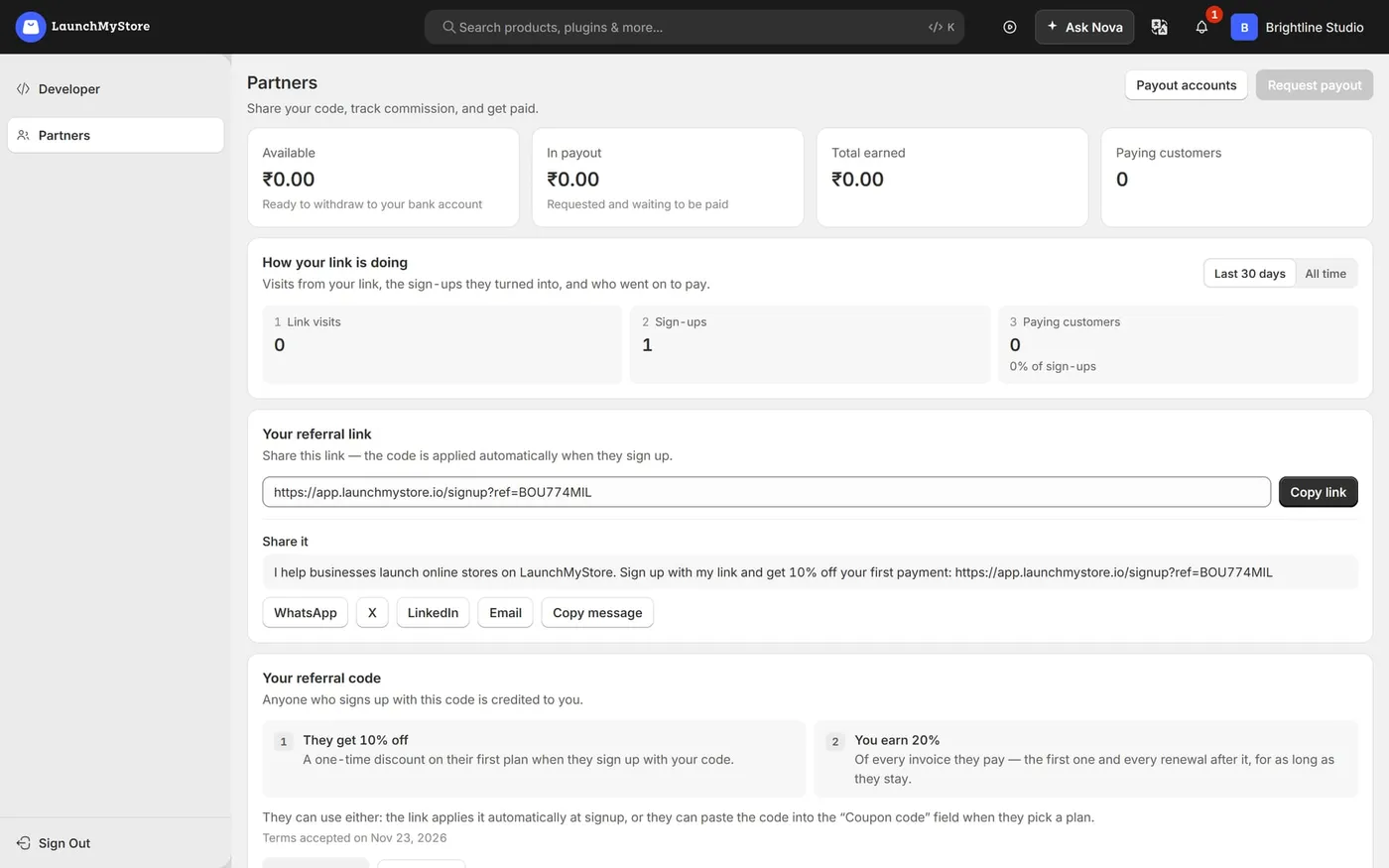
| Part of the page | What it shows |
|---|---|
| Available, In payout, Total earned | Your commission: what you can withdraw now, what is waiting to be paid out, and everything earned so far. |
| Paying customers | How many of the stores you referred are paying. |
| How your link is doing | Visits from your link, the sign-ups they turned into, and who went on to pay. Switch between the last 30 days and all time. |
| Your referral link and code | What you share. Both credit new stores to you. |
| Tabs below | Referrals and Payouts (your history), Stores (development and client stores), Team, Resources (marketing kit). |
The buttons at the top right, Payout accounts and Request payout, are covered in chapter 12.
Accept the program terms
Before your first payout, read the program terms at the top of the Partners page and choose Accept terms. You only do this once.
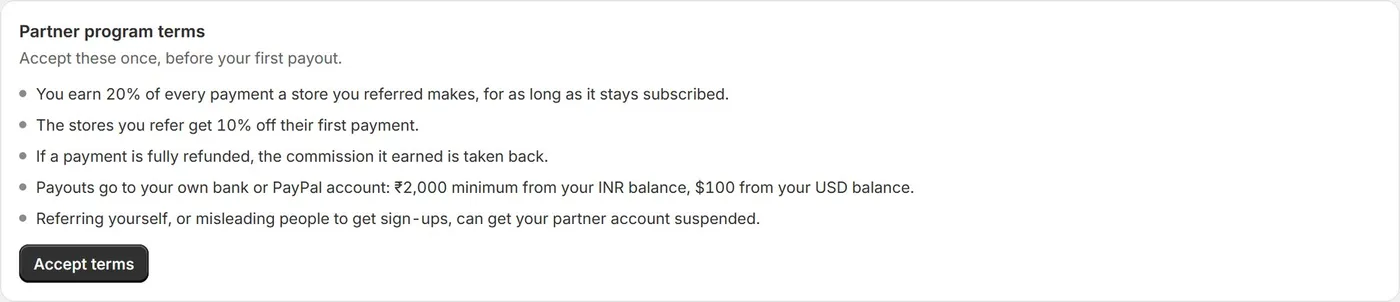
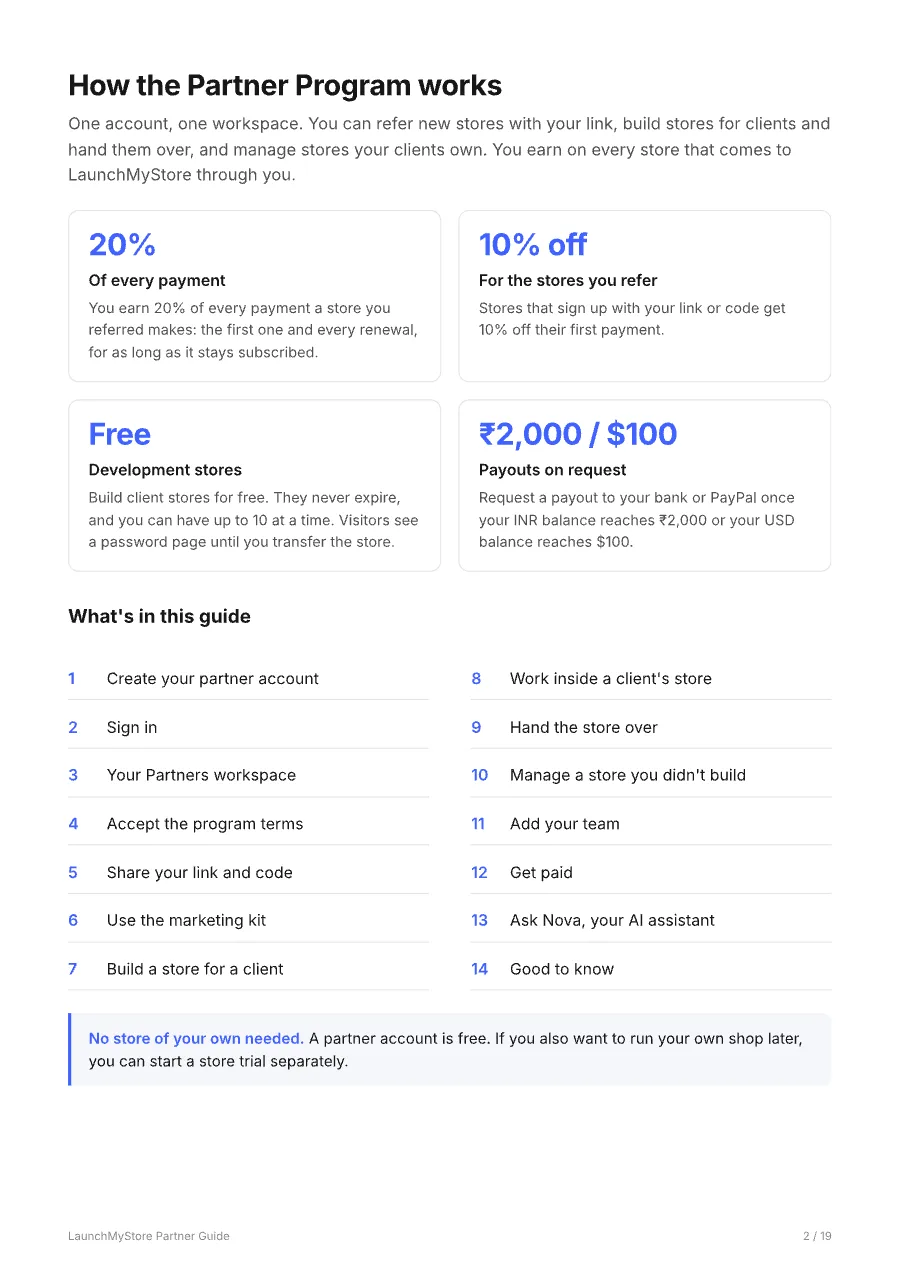
- You earn 20% of every payment a store you referred makes, for as long as it stays subscribed.
- The stores you refer get 10% off their first payment.
- If a payment is fully refunded, the commission it earned is taken back.
- Payouts go to your own bank or PayPal account: ₹2,000 minimum from your INR balance, $100 from your USD balance.
- Referring yourself, or misleading people to get sign-ups, can get your partner account suspended.
Once accepted, the page shows the date you accepted under your referral code.
Share your link and code
Anyone who signs up through your link, or enters your code, is credited to you.
Your referral link
- On the Partners page, find Your referral link.
- Choose Copy link, or share it in one click with WhatsApp, X, LinkedIn or Email. Copy message copies a ready-made message with your link in it.
Your link applies your code automatically when someone signs up, so they get their 10% off their first payment without typing anything.
Your referral code
Prefer a code? Choose Copy code. A new store can enter it in the Coupon code field when they pick a plan.
Use the marketing kit
Open the Resources tab for ready-made material. Everything already carries your referral link.
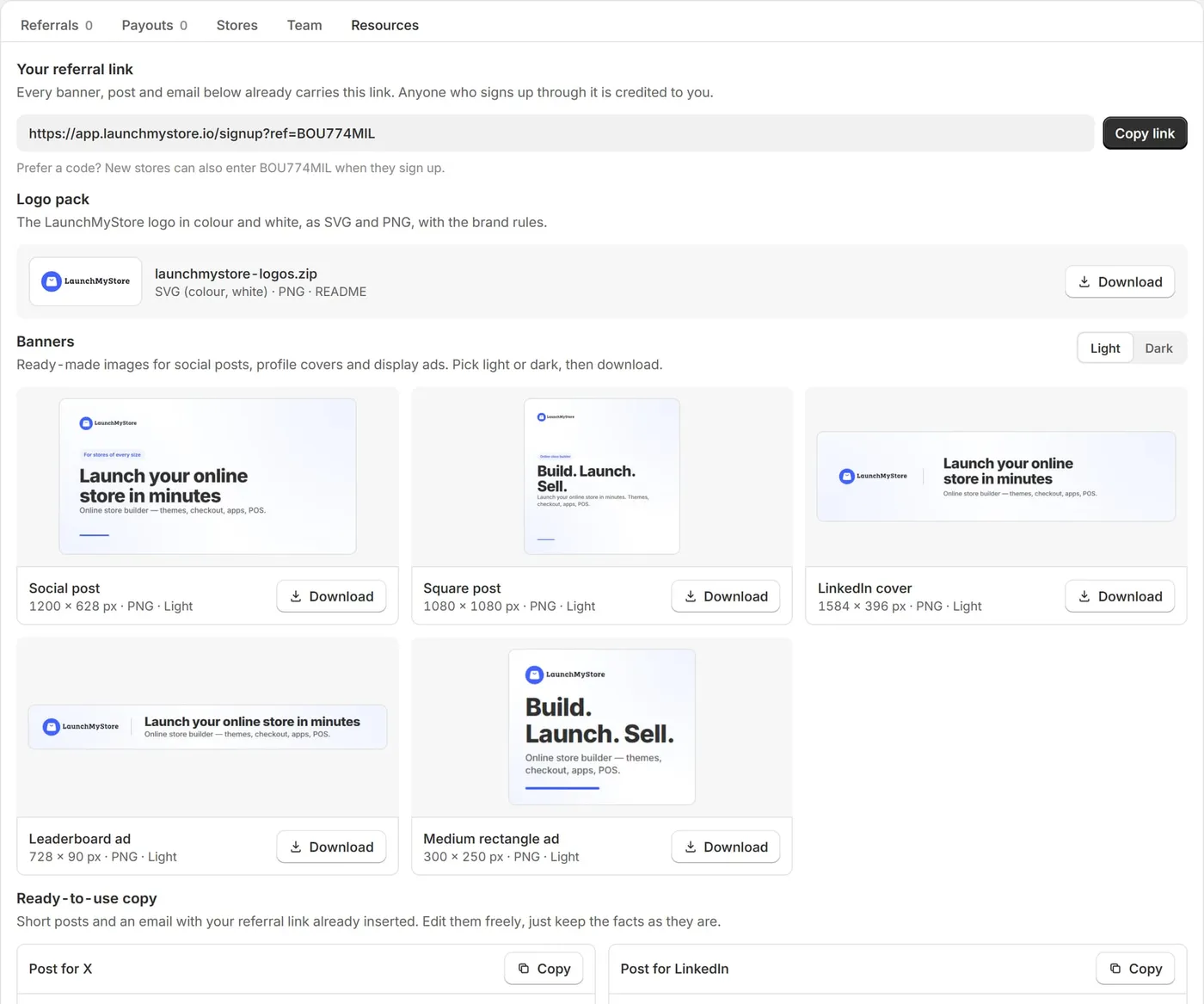
- Logo pack: the LaunchMyStore logo in colour and white (SVG and PNG), with the brand rules.
- Banners: social post, square post, LinkedIn cover, leaderboard ad and medium rectangle ad, in light or dark. Choose Download on the one you need.
- Ready-to-use copy: posts for X and LinkedIn, a WhatsApp message and an email, with your link inserted. Choose Copy.
Build a store for a client
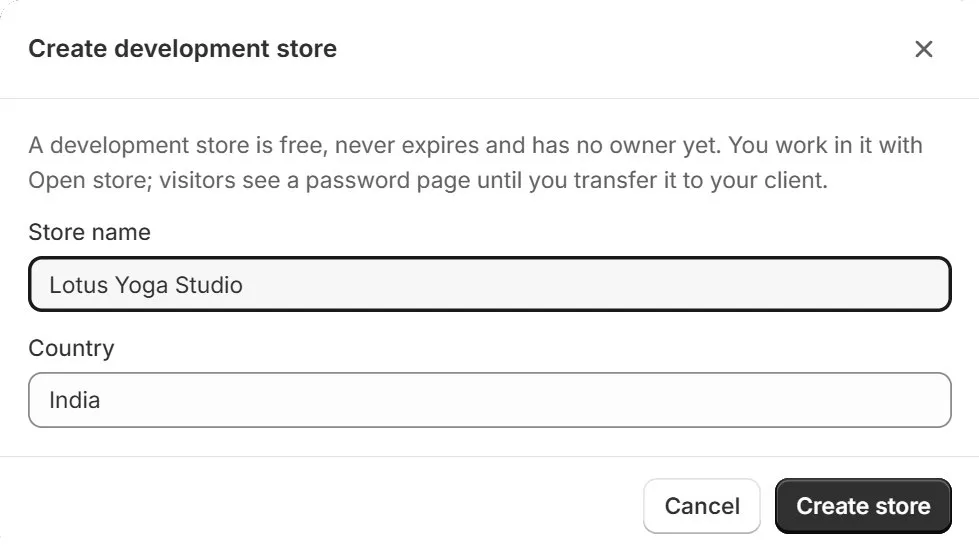
A development store is a full LaunchMyStore store that you build before your client owns it. It's free, it never expires, and you can have up to 10 at a time.
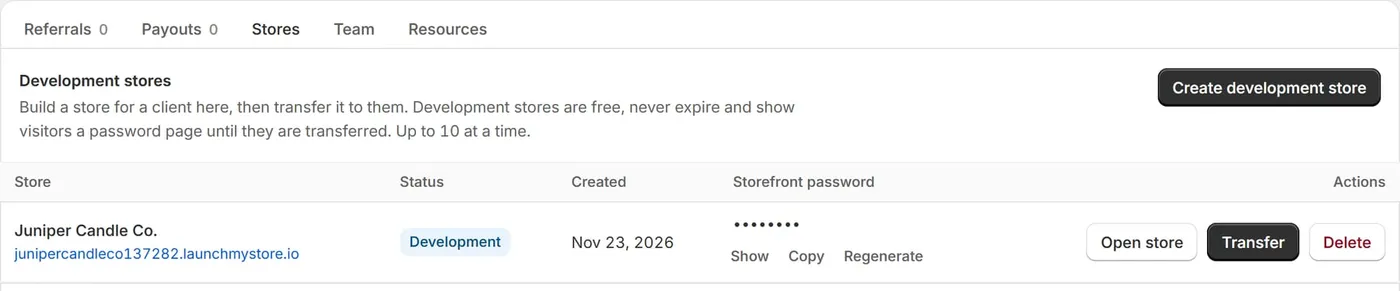
- Open the Stores tab and choose Create development store.
- Enter the store name and country, then choose Create store.
The storefront password
Until you transfer the store, visitors see a password page. Share the password with your client so they can preview the store. Use Show, Copy or Regenerate (a new password stops the old one working).
To remove a development store you no longer need, choose Delete. Everything in it is removed, and this can't be undone.
Work inside a client's store
Choose Open store next to any store you have access to. The store's admin opens in a new tab, with a yellow banner saying which store you're managing.
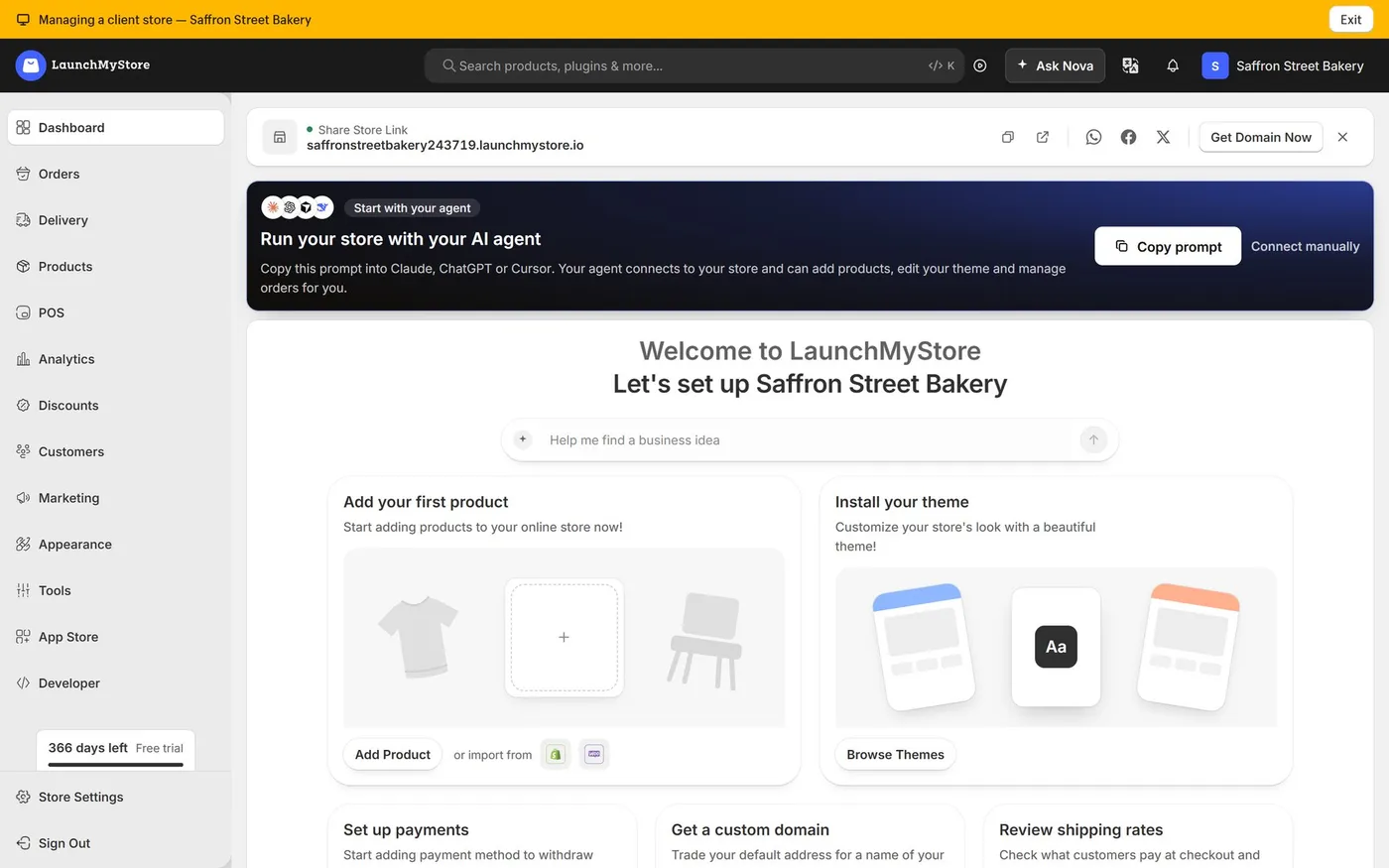
Add products, choose and design the theme, set up shipping and taxes, install apps: everything you'd do in your own store.
When you're done, choose Exit in the banner to go back to your own account.
Hand the store over
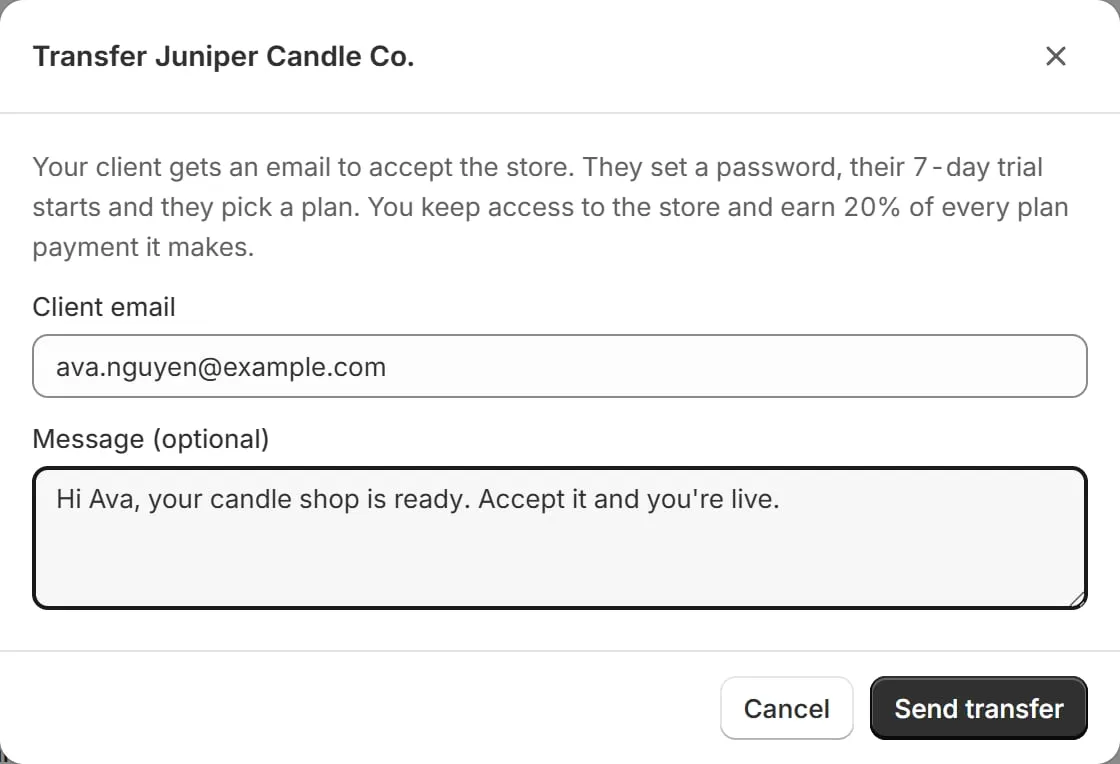
When the store is ready, transfer it to your client. They become the owner; you keep access and earn 20% of every plan payment the store makes.
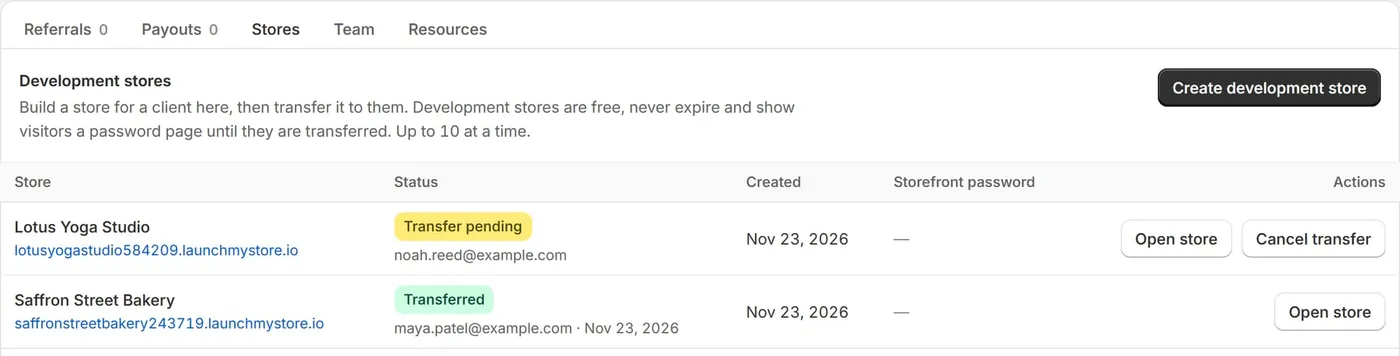
- On the Stores tab, choose Transfer next to the development store.
- Enter your client's email and, if you like, a short message. Choose Send transfer and confirm the address.
- Your client gets an email with a link to accept the store.
What your client sees
Your client opens the link from the email, enters their name and chooses a password. They are signed straight in as the store's owner.
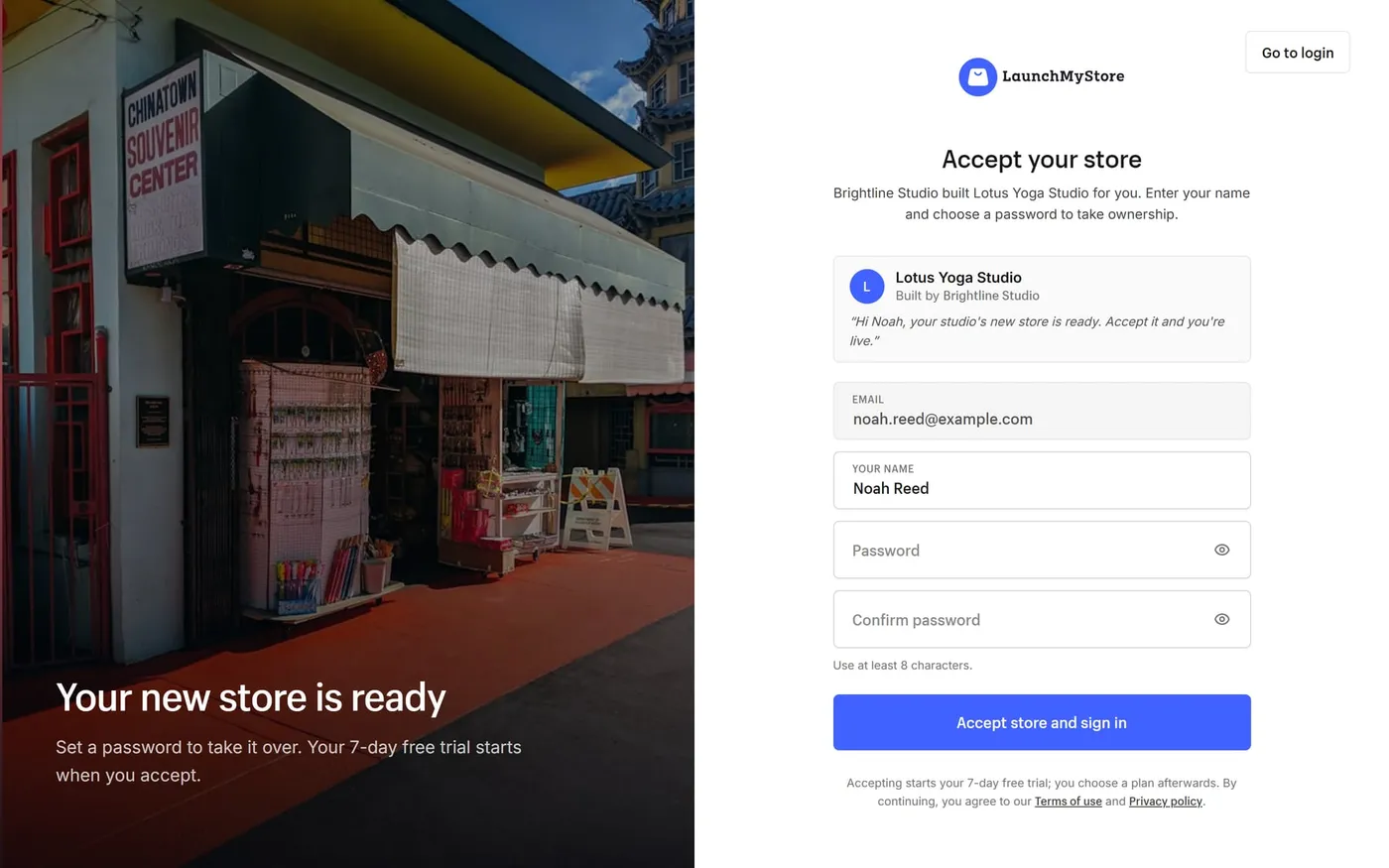
- Accepting starts the store's 7-day free trial. Your client picks a plan afterwards.
- The store shows as Transferred on your Stores tab, and stays in your Client stores as active, so you can keep working on it.
- You earn 20% of every plan payment the store makes.
Manage a store you didn't build
Your client already has a LaunchMyStore store? Ask them for access. They approve it from their own admin.
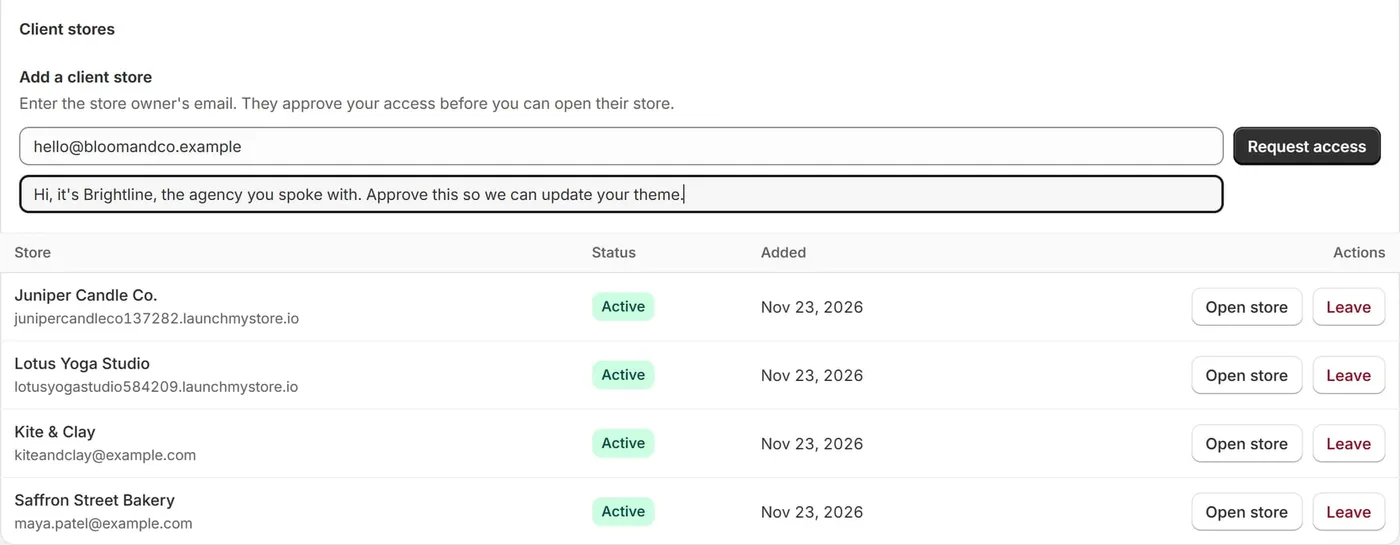
- On the Stores tab, under Add a client store, enter the store owner's email and an optional note.
- Choose Request access. The store appears in your Client stores as Pending.
Your client approves
The owner opens Partners → Access to your store in their admin. They see your name and note, and choose Approve or Decline.


Once approved, the store shows as Active in your Client stores; choose Open store to work in it (chapter 8). To stop working on a store, choose Leave.
Add your team
Invite the people who help you run your partner business. Each member signs in with their own login and sees only what you allow. You can have up to 10 members.
- Open the Team tab and choose Invite member.
- Enter their name and email, pick a role, and tick what they can do.
- Choose Send invite. They get an email with a temporary password.
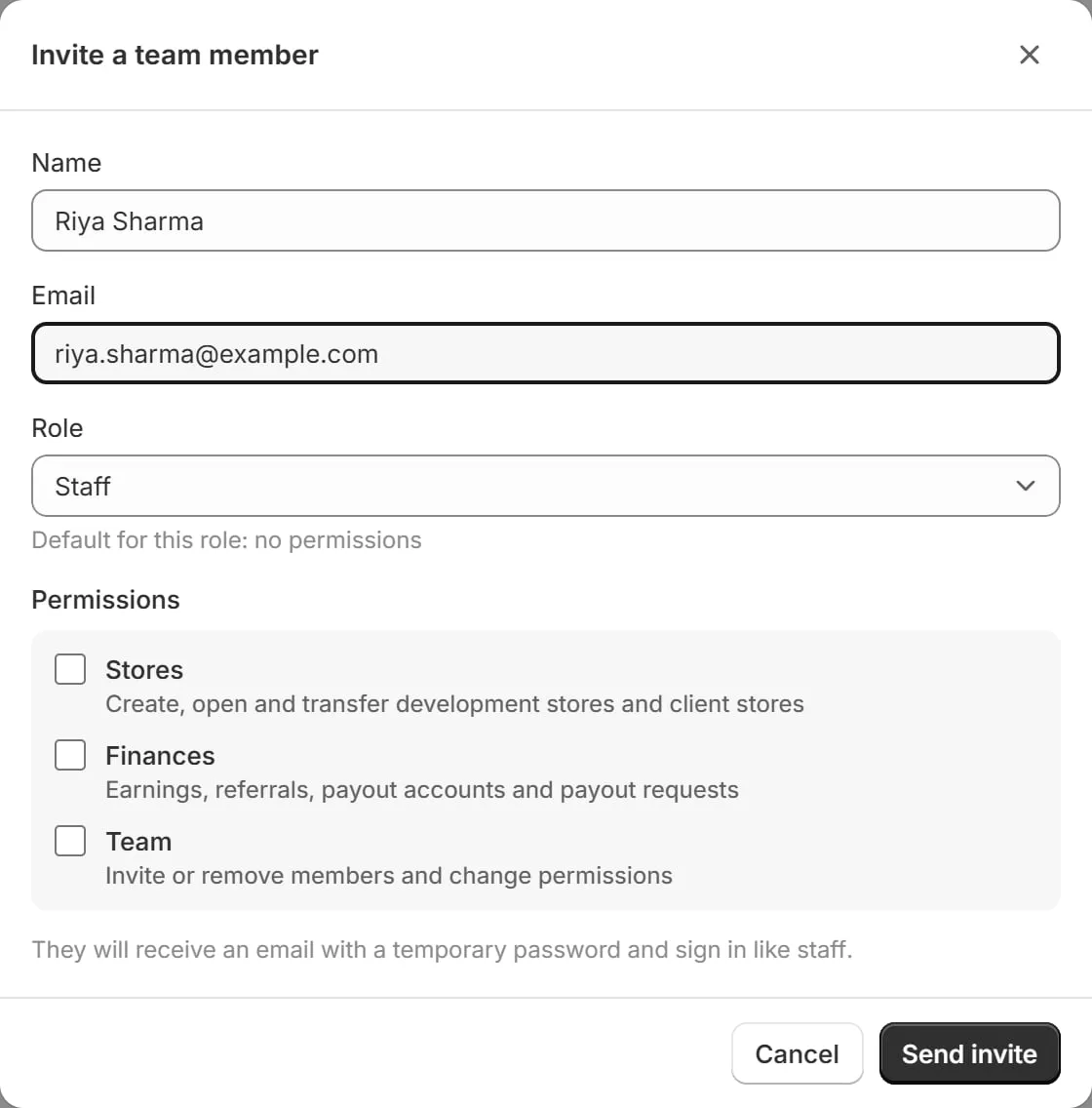
| Permission | Lets them |
|---|---|
| Stores | Create, open and transfer development stores and client stores |
| Finances | See earnings and referrals, manage payout accounts and payout requests |
| Team | Invite or remove members and change permissions |
Change a member's permissions any time with the tick boxes on their row, or choose Remove; they can then no longer sign in.

Get paid
Your commission collects in two wallets, INR and USD. You request a payout when a wallet reaches its minimum.
1. Add a payout account
Choose Payout accounts at the top of the Partners page, then Add payout account.
- Local bank (for your INR balance): account holder name, account number and IFSC code.
- International (for your USD balance): a bank transfer (account number, IBAN, bank name and address) or PayPal (your PayPal email).
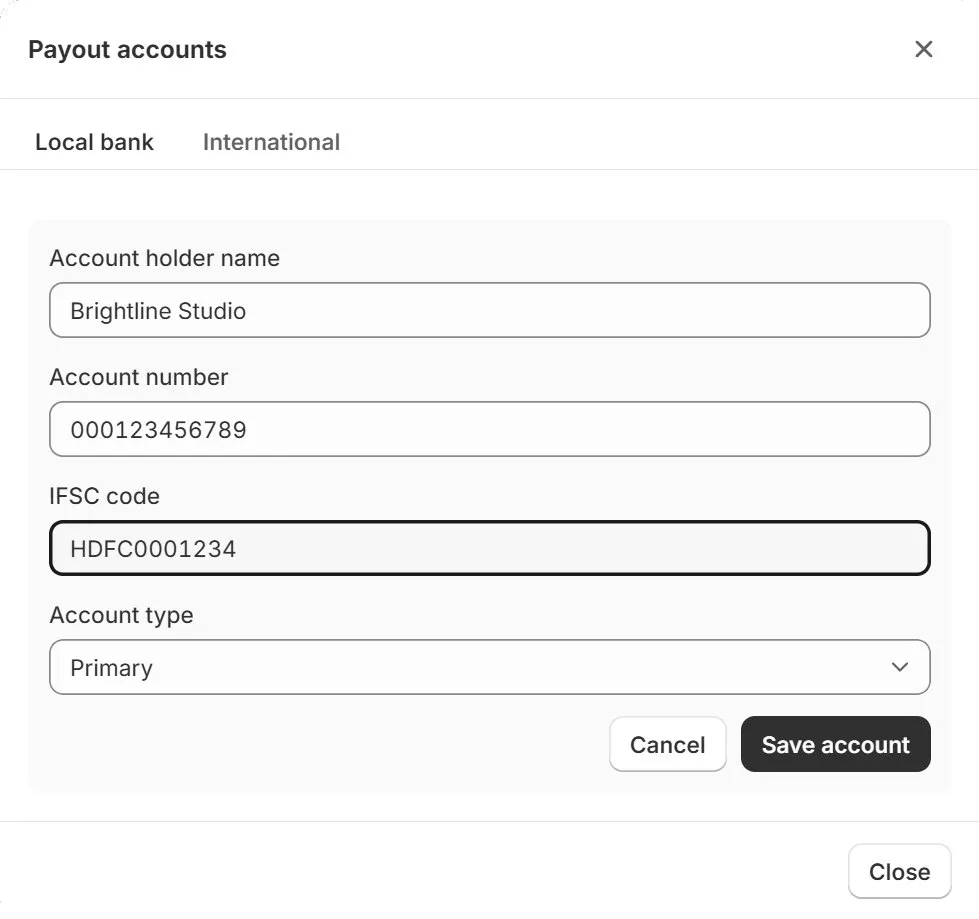
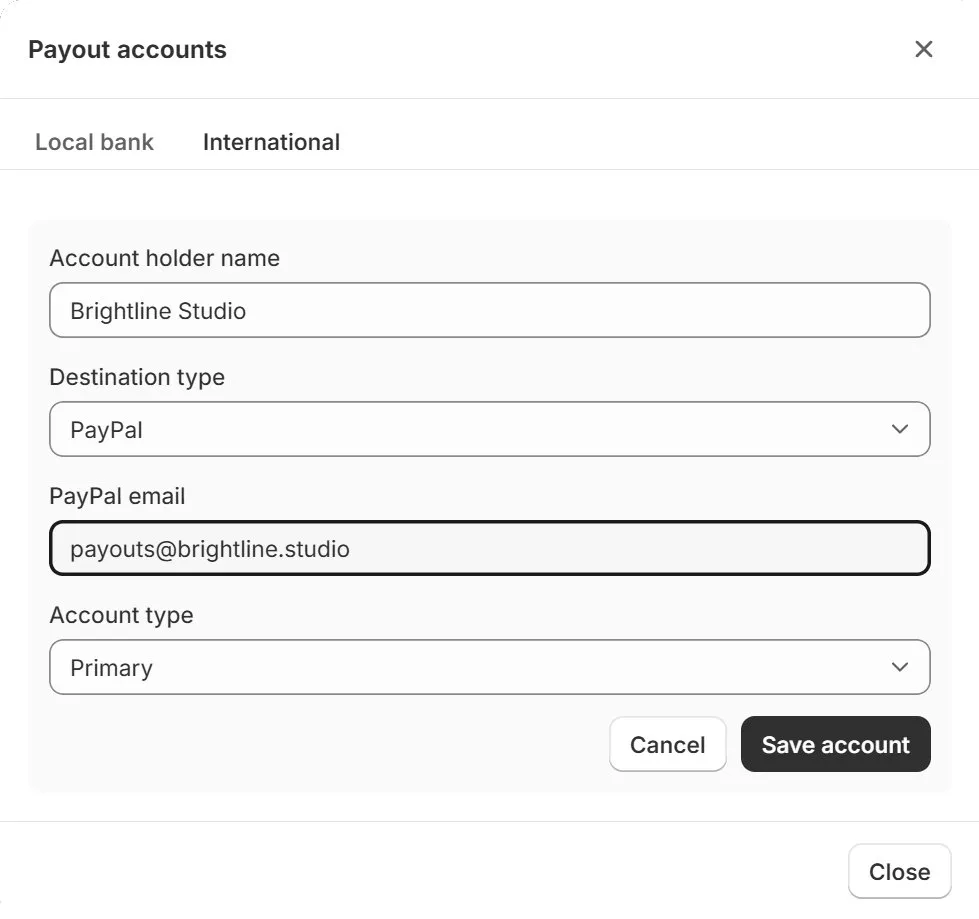
Payouts go to an account in your own name.
Request a payout
- Make sure you've accepted the program terms (chapter 4).
- Once your Available balance reaches ₹2,000 (INR) or $100 (USD), choose Request payout.
- Pick the payout account and amount, and send the request. The amount moves to In payout until it's paid.
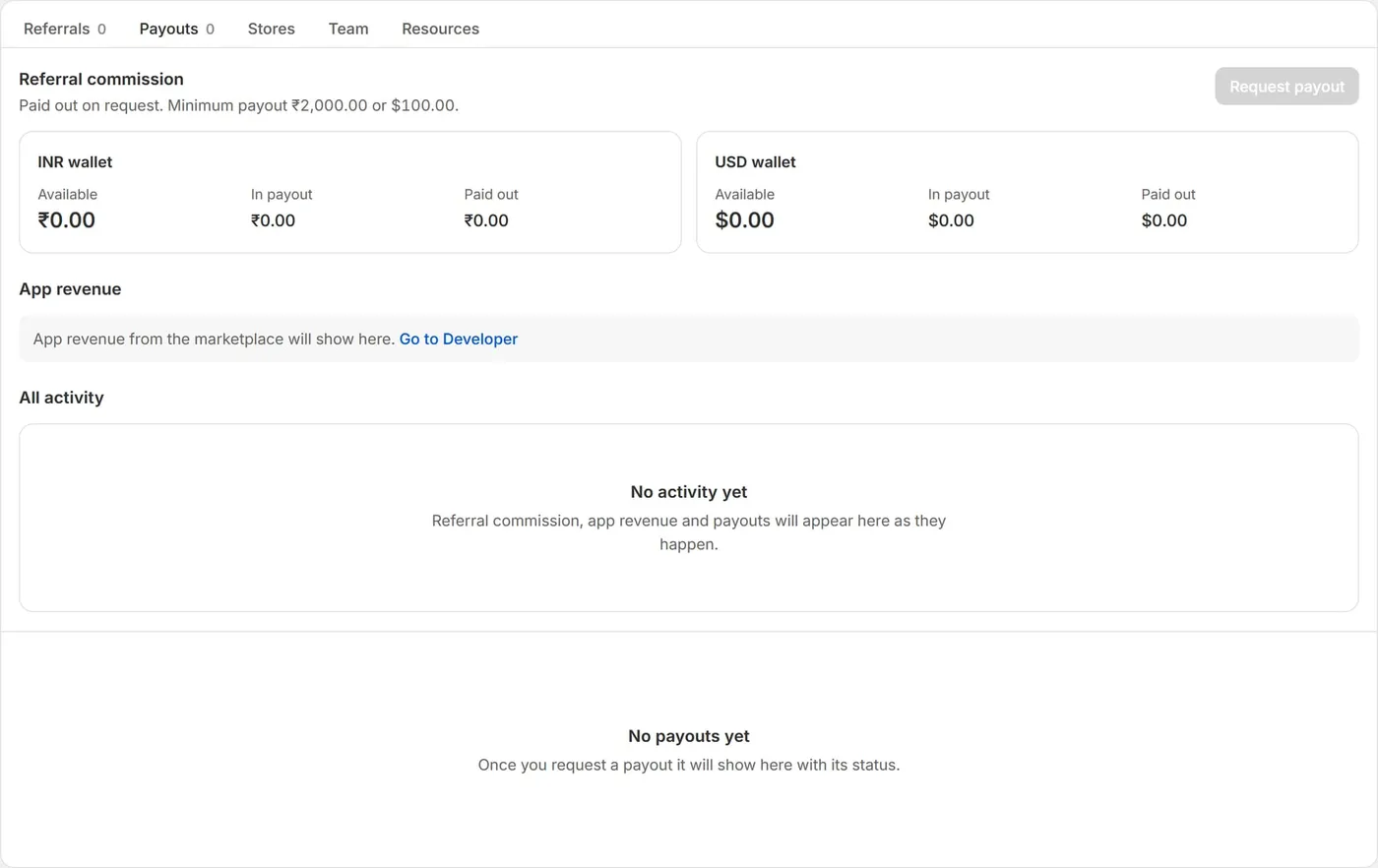
The Payouts tab shows each wallet (available, in payout, paid out), every request with its status, and all activity: commission, payouts, and app revenue if you also sell apps.
Ask Nova, your AI assistant
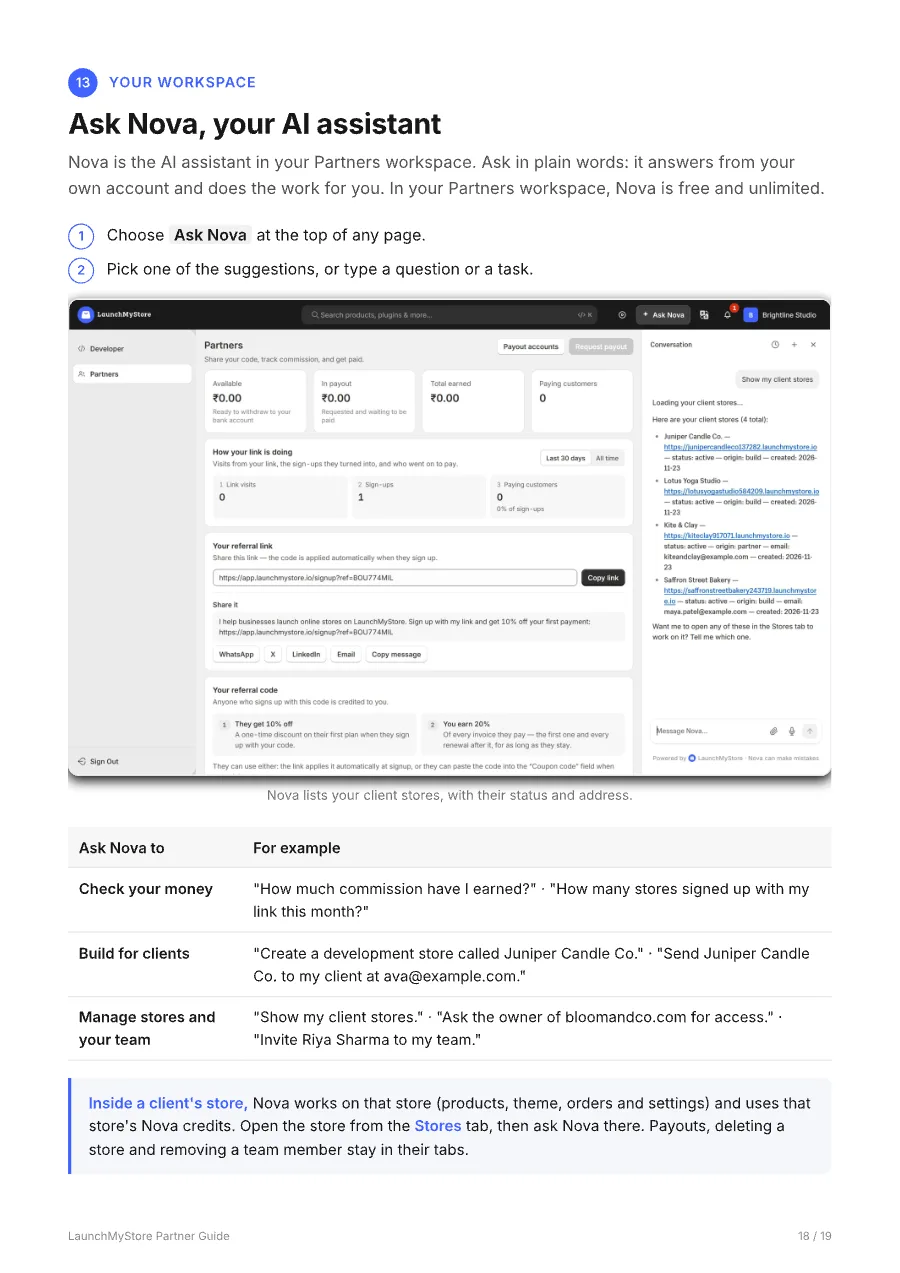
Nova is the AI assistant in your Partners workspace. Ask in plain words: it answers from your own account and does the work for you. In your Partners workspace, Nova is free and unlimited.
- Choose Ask Nova at the top of any page.
- Pick one of the suggestions, or type a question or a task.
| Ask Nova to | For example |
|---|---|
| Check your money | "How much commission have I earned?" · "How many stores signed up with my link this month?" |
| Build for clients | "Create a development store called Juniper Candle Co." · "Send Juniper Candle Co. to my client at [email protected]." |
| Manage stores and your team | "Show my client stores." · "Ask the owner of bloomandco.com for access." · "Invite Riya Sharma to my team." |
Good to know
How long do I earn on a store?
For as long as the store stays subscribed: 20% of the first payment and of every renewal.
Do the stores I build earn me commission?
Yes. Once you transfer a development store, you earn 20% of every plan payment it makes.
My client never got the transfer email.
Check the address with them. If it was wrong, choose Cancel transfer and send a new one. The link works for 14 days; after that, cancel it and send a new one.
Can a client remove my access?
Yes. The owner can revoke your access at any time from Partners → Access to your store. You can also leave a store yourself with Leave.
What can't I change in a client's store?
Billing, payment details, payouts and staff always stay with the store owner. Paid apps can't be installed from a partner session.
Is Nova free for partners?
Yes. Nova is free and unlimited in your Partners workspace. Inside a client's store it works on that store and uses that store's Nova credits.
How many development stores can I have?
Up to 10 at a time. They're free and never expire. Delete the ones you no longer need, or transfer them.
Where can I read more?
The partner documentation at docs.launchmystore.io/partners/program and docs.launchmystore.io/partners/development-stores.